SSH with Benefits: Interactive Updates on Login

Keeping servers tidy usually means running a few routine tasks: system updates, container refreshes, and the occasional cleanup. But instead of manually typing the same commands every time you SSH in, why not make your server ask you what you want to do?
This post walks through how I added an interactive maintenance prompt that appears automatically when I SSH into a host, offering to run system updates or Docker updates on demand and how it ties into a custom Watchtower script that updates containers safely and silently.
The Idea
Every time I SSH into one of my Docker hosts, I usually end up running either apt update && apt upgrade or triggering Watchtower to update my containers.
To make life easier, I modified my .bashrc so the host asks me automatically:

Depending on what I choose, it runs either a system update (S), launches my Docker update script (D), or simply skips maintenance (N). It’s clean, fast, and perfect for routine maintenance sessions.
The SSH Maintenance Prompt
Here’s the .bashrc section that makes it happen below. Add this to the bottom of your .bashrc file:
if [ -n "$SSH_CONNECTION" ]; then
# Docker update script path
    DOCKER_SCRIPT="/home/user/docker/docker_watchertower_script.sh"

    # Colors to match your PS1
    BLUE="\033[38;5;117m"      # baby blue
    DARK_BLUE="\033[38;5;33m"  # darker blue
    WHITE="\033[38;5;15m"      # white
    RESET="\033[0m"

    echo ""
    echo -e "Do you want to run System Updates, Docker Updates or Nothing (${BLUE}S${RESET} / ${DARK_BLUE}D${RESET} / N)"
    read -p "> " answer

    case "$answer" in
        [Ss]* )
            echo -e "${BLUE}Running system updates...${RESET}"
            sudo apt-get update && sudo apt-get upgrade -y
            echo ""
            ;;
        [Dd]* )
            if [ -x "$DOCKER_SCRIPT" ]; then
                echo
                echo -e "${DARK_BLUE}🐋 Docker Watchtower Update Script ...${RESET}"
                "$DOCKER_SCRIPT"
            elif [ -f "$DOCKER_SCRIPT" ]; then
                echo
                echo -e "${DARK_BLUE}🐋 Docker Watchtower Update Script ...${RESET}"
                bash "$DOCKER_SCRIPT"
            else
                echo "Docker update script not found at: $DOCKER_SCRIPT"
            fi
            echo ""
            ;;
        [Nn]* | "" )
            echo "Skipping maintenance."
            ;;
        * )
            echo "Invalid response. Skipping maintenance."
            ;;
    esac

    echo ""
fi
🐋 Docker Script Path
Ensure that you amend the script path for 'DOCKER_SCRIPT'
🎨 PS1 Colours
You can change the text colour by amending the name and colour value under '# Colors to match your PS1'. A list of colours can be found here
How It Works
- The prompt appears only when connecting via SSH, not when opening a local terminal.
- It gives you three options:
- S → Runs system updates via
apt-get - D → Launches the Docker Watchtower update script
- N → Skips everything and drops you into the shell
- S → Runs system updates via
- The color-coded text makes the prompt easy to read at a glance.
- If the Docker script isn’t executable, it still runs via
bash.
This tiny addition makes maintenance proactive and reduces repetitive typing.
Daily Check
If you log into a server multiple times a day and don't want to be prompted every time, you can amend the code above and include the following below to only prompt once a day
if [ -n "$SSH_CONNECTION" ]; then
    # Docker update script path
    DOCKER_SCRIPT="/home/user/docker/docker_watchertower_script.sh"

    # Colors to match your PS1
    BLUE="\033[38;5;117m"      # baby blue
    DARK_BLUE="\033[38;5;33m"  # darker blue
    WHITE="\033[38;5;15m"      # white
    RESET="\033[0m"

    # Prompt only once per day
    LAST_PROMPT_FILE="$HOME/.last_maintenance_prompt"
    TODAY=$(date +%Y-%m-%d)

    if [ -f "$LAST_PROMPT_FILE" ]; then
        LAST_PROMPT_DATE=$(cat "$LAST_PROMPT_FILE")
    else
        LAST_PROMPT_DATE=""
    fi

    if [ "$TODAY" != "$LAST_PROMPT_DATE" ]; then
        echo ""
        echo -e "Do you want to run System Updates, Docker Updates or Nothing (${BLUE}S${RESET} / ${DARK_BLUE}D${RESET} / N)"
        read -p "> " answer

        case "$answer" in
            [Ss]* )
                echo -e "${BLUE}Running system updates...${RESET}"
                sudo apt-get update && sudo apt-get upgrade -y
                echo ""
                ;;
            [Dd]* )
                if [ -x "$DOCKER_SCRIPT" ]; then
                    echo
                    echo -e "${DARK_BLUE}🐋 Docker Watchtower Update Script ...${RESET}"
                    "$DOCKER_SCRIPT"
                elif [ -f "$DOCKER_SCRIPT" ]; then
                    echo
                    echo -e "${DARK_BLUE}🐋 Docker Watchtower Update Script ...${RESET}"
                    bash "$DOCKER_SCRIPT"
                else
                    echo "Docker update script not found at: $DOCKER_SCRIPT"
                fi
                echo ""
                ;;
            [Nn]* | "" )
                echo "Skipping maintenance."
                ;;
            * )
                echo "Invalid response. Skipping maintenance."
                ;;
        esac

        # Record that the prompt was shown today
        echo "$TODAY" > "$LAST_PROMPT_FILE"
        echo ""
    fi
fi
The Docker Update Script
The prompt’s “Docker Updates” option calls a script named
docker_watchertower_script.sh. This script wraps Watchtower in a clean, interactive shell experience.
Here’s what it does:
- Lets you choose between updating all running containers or a specific set defined in the script.
- Shows a spinner animation while Watchtower runs.
- Compares Docker image IDs before and after the update to detect which containers changed.
- Prints a formatted summary of updated, unchanged, or missing containers.
The Script
Here is the script for updating Docker containers.
#!/bin/bash

# Colours
BLUE="\033[38;5;117m"      # light blue
DARK_BLUE="\033[38;5;33m"  # dark blue
RESET="\033[0m"

# List of containers for Specific mode
CONTAINERS=(
  docker_container_1
  docker_container_2
  docker_container_3
  docker_container_4
  docker_container_5
)

# Spinner animation
spinner_intro() {
    local delay=0.1
    local spin=( '🌀' '💫' '🔄' '↻' )
    local i=0
    local start_time
    start_time=$(date +%s)
    tput civis 2>/dev/null
    while [ $(( $(date +%s) - start_time )) -lt 3 ]; do
        printf "\r %s  Running Watchtower..." "${spin[i]}"
        i=$(( (i + 1) % 4 ))
        sleep "$delay"
    done
    printf "\r\033[K"
    tput cnorm 2>/dev/null
}

echo ""
echo -e "Do you want to update ${BLUE}All${RESET} or ${DARK_BLUE}Specific${RESET} Docker containers? (${BLUE}A${RESET} / ${DARK_BLUE}S${RESET})"
read -p "> " choice

MODE_ALL=false
TARGET_CONTAINERS=()

if [[ "$choice" =~ ^[Aa]$ ]]; then
    MODE_ALL=true
    mapfile -t TARGET_CONTAINERS < <(docker ps --format '{{.Names}}')
    if [ ${#TARGET_CONTAINERS[@]} -eq 0 ]; then
        echo ""
        echo "No running containers found. Exiting."
        exit 0
    fi
    echo ""
    echo -e "${BLUE} 🗒️ Updating all running containers...${RESET}"

elif [[ "$choice" =~ ^[Ss]$ ]]; then
    MODE_ALL=false
    TARGET_CONTAINERS=("${CONTAINERS[@]}")
    echo ""
    echo -e "${DARK_BLUE} 🗒️ Updating Specific Docker Container List...${RESET}"

else
    echo ""
    echo "Invalid choice. Exiting."
    exit 1
fi

declare -A BEFORE_IDS
declare -A AFTER_IDS

for c in "${TARGET_CONTAINERS[@]}"; do
    BEFORE_IDS["$c"]=$(docker inspect -f '{{.Image}}' "$c" 2>/dev/null || echo "missing")
done

spinner_intro

# Run Watchtower silently
if [ "$MODE_ALL" = true ]; then
    docker run --rm -v /var/run/docker.sock:/var/run/docker.sock containrrr/watchtower --run-once --cleanup >/dev/null 2>&1
else
    docker run --rm -v /var/run/docker.sock:/var/run/docker.sock containrrr/watchtower --run-once --cleanup "${TARGET_CONTAINERS[@]}" >/dev/null 2>&1
fi

docker rmi containrrr/watchtower:latest >/dev/null 2>&1

echo -e "${DARK_BLUE} ✅ Watchtower Script Completed${RESET}"
echo

for c in "${TARGET_CONTAINERS[@]}"; do
    AFTER_IDS["$c"]=$(docker inspect -f '{{.Image}}' "$c" 2>/dev/null || echo "missing")
done

UPDATED=()
UP_TO_DATE=()
MISSING=()

for c in "${TARGET_CONTAINERS[@]}"; do
    before="${BEFORE_IDS[$c]}"
    after="${AFTER_IDS[$c]}"
    if [ "$before" = "missing" ] || [ "$after" = "missing" ]; then
        MISSING+=("$c")
    elif [ "$before" != "$after" ]; then
        UPDATED+=("$c")
    else
        UP_TO_DATE+=("$c")
    fi
done

# Summary box
echo -e "${DARK_BLUE}╔════════════════════════════════════════════════════╗${RESET}"
echo -e "${DARK_BLUE}║${RESET}${BLUE}                  Update Summary                    ${RESET}${DARK_BLUE}║${RESET}"
echo -e "${DARK_BLUE}╚════════════════════════════════════════════════════╝${RESET}"
echo

if [ "${#UPDATED[@]}" -gt 0 ]; then
    echo -e " ${BLUE}✅ Updated containers:${RESET}"
    for c in "${UPDATED[@]}"; do echo "     - $c"; done
else
    echo -e " ${BLUE}✅ Updated containers:${RESET}"
    echo "     - None"
fi

echo

if [ "${#UP_TO_DATE[@]}" -gt 0 ]; then
    echo -e " ${BLUE}✅ Containers already up to date:${RESET}"
    for c in "${UP_TO_DATE[@]}"; do echo "     - $c"; done
else
    echo -e " ${BLUE}✅ Containers already up to date:${RESET}"
    echo "     - None"
fi

if [ "${#MISSING[@]}" -gt 0 ]; then
    echo
    echo " Containers missing before or after update (check manually):"
    for c in "${MISSING[@]}"; do echo "     - $c"; done
fi

echo
🐋 Docker Containers
To only update certain Docker containers, ensure you amend the list under 'CONTAINERS'
The Combined Effect
When I SSH into the host, I’m greeted with this:
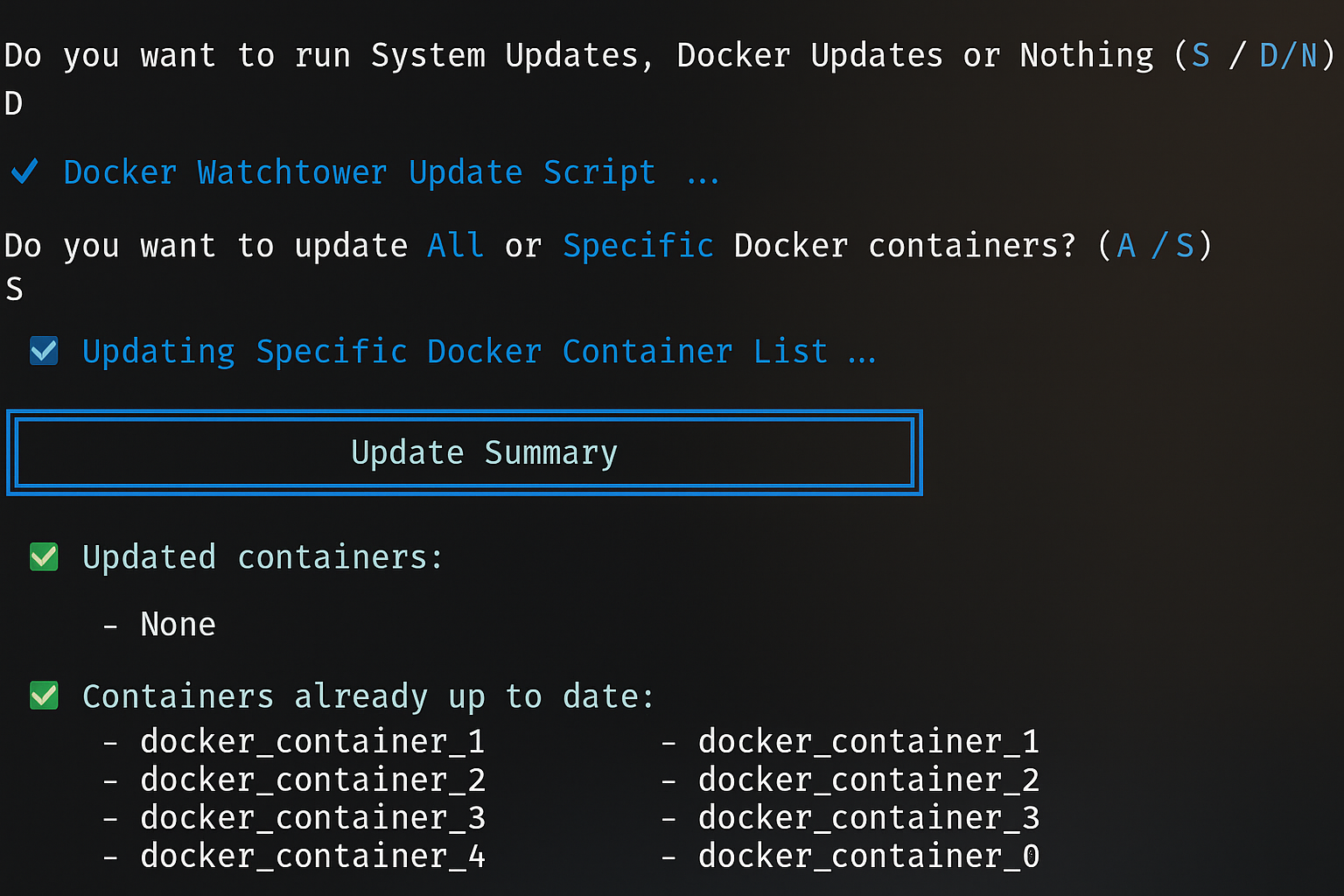
It feels cohesive, fast, and automated without losing control over what’s being updated.
Why This Setup Works Well
- SSH-triggered automation: The maintenance prompt appears only when logging in remotely.
- Safe and controlled updates: You decide what to run each time.
- Watchtower convenience: Silent, one-shot updates with cleanup.
- Readable feedback: The summary ensures you know what changed.
Together, these scripts turn a routine maintenance task into a neat, integrated workflow.
Final Thoughts
This setup gives you a hands-on but hassle-free way to keep your server up to date.
Instead of running commands manually, your server politely asks if you’d like to perform maintenance as soon as you log in.